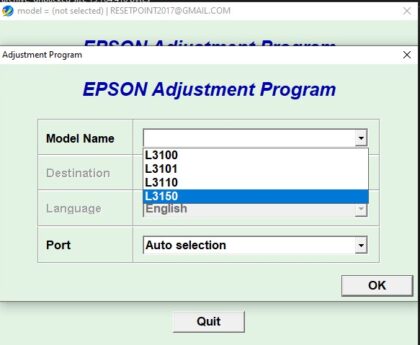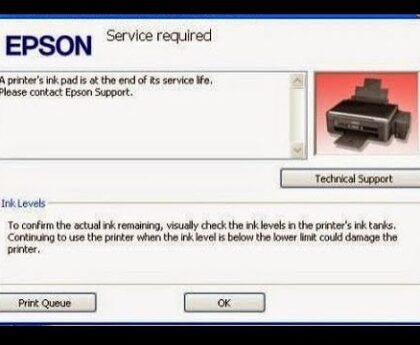

This post will guide you on how to use epson L3250 resetter to fix your printer back to work.
Is your Epson L3250 not printing and showing “Service Required” or “Ink Pad is at the end of its service life”?
This issue is very common and happens when the waste ink pad counter is full. The printer automatically stops working until it is reset.
In this guide, you’ll learn:
- How to reset Epson L3250 step-by-step
- Where to download the Epson resetter
- How to get instant help via WhatsApp or remote reset
Table of Contents
✅ Option 1: Download Epson L3250 Resetter
Get the Epson L3250 Adjustment Program with resetting instructions and reset it yourself in minutes.
💬 Option 2: Order via WhatsApp
- Send “Epson L3250 resetter”
- Pay via M-Pesa
- Receive download + instructions instantly
WhatsApp: 0707637143
🖥️ Option 3: Remote Reset via AnyDesk
Don’t want the hassle?
We can reset your printer remotely.
Steps:
- Message WhatsApp 0707637143
- Install AnyDesk
- Share your ID
- We reset it for you
What Causes the Error?
Epson printers track ink used during cleaning cycles. Over time, ink is stored in internal pads.
Once the counter reaches its limit:
- Printer stops working
- Errors appear
- Printing is disabled
This is a software lock, not hardware damage.
How to Reset Epson L3250
1. Download Adjustment Program
Download the Epson L3250 resetter from our shop and extract it.
2. Connect Printer via USB
- Use USB cable (WiFi won’t work)
- Turn printer ON
3. Run the Resetter Tool
- Open Adj Program
- Run as Administrator
4. Select Printer Model
- Choose Epson L3250
- Select USB port
5. Reset Waste Ink Counter
- Click “Particular Adjustment Mode”
- Select “Waste Ink Pad Counter”
- Click OK
6. Initialize Reset
- Tick Main Pad Counter
- Click Initialize
- Wait for completion
7. Restart Printer
Turn OFF and ON again.
Your Epson L3250 should now print normally.
Important Tips
- Always use USB connection
- Do not interrupt reset
- Disable antivirus if blocked
- Run program as Administrator
Need Help Resetting?
If you’re stuck or want it done instantly:
WhatsApp 0707637143
We guide you or reset it remotely via AnyDesk.
Resetting the counter restores printing but does not clean the ink pads physically. For heavy use, consider cleaning them later.